4 updates
Welcome to the seventh issue of the Moda weekly update. Last week we introduced Modesius in the dashboard. This week we've been working on how you follow a task through a conversation. A summary can leave you with questions about what the agent did and what it had available when it answered.
In this update we'll cover more detail in use cases, timelines for recent tasks, and a way to find traces by their processing status. We've also added turn snapshots and put attachments beside the messages they belong to.
More detail in use cases
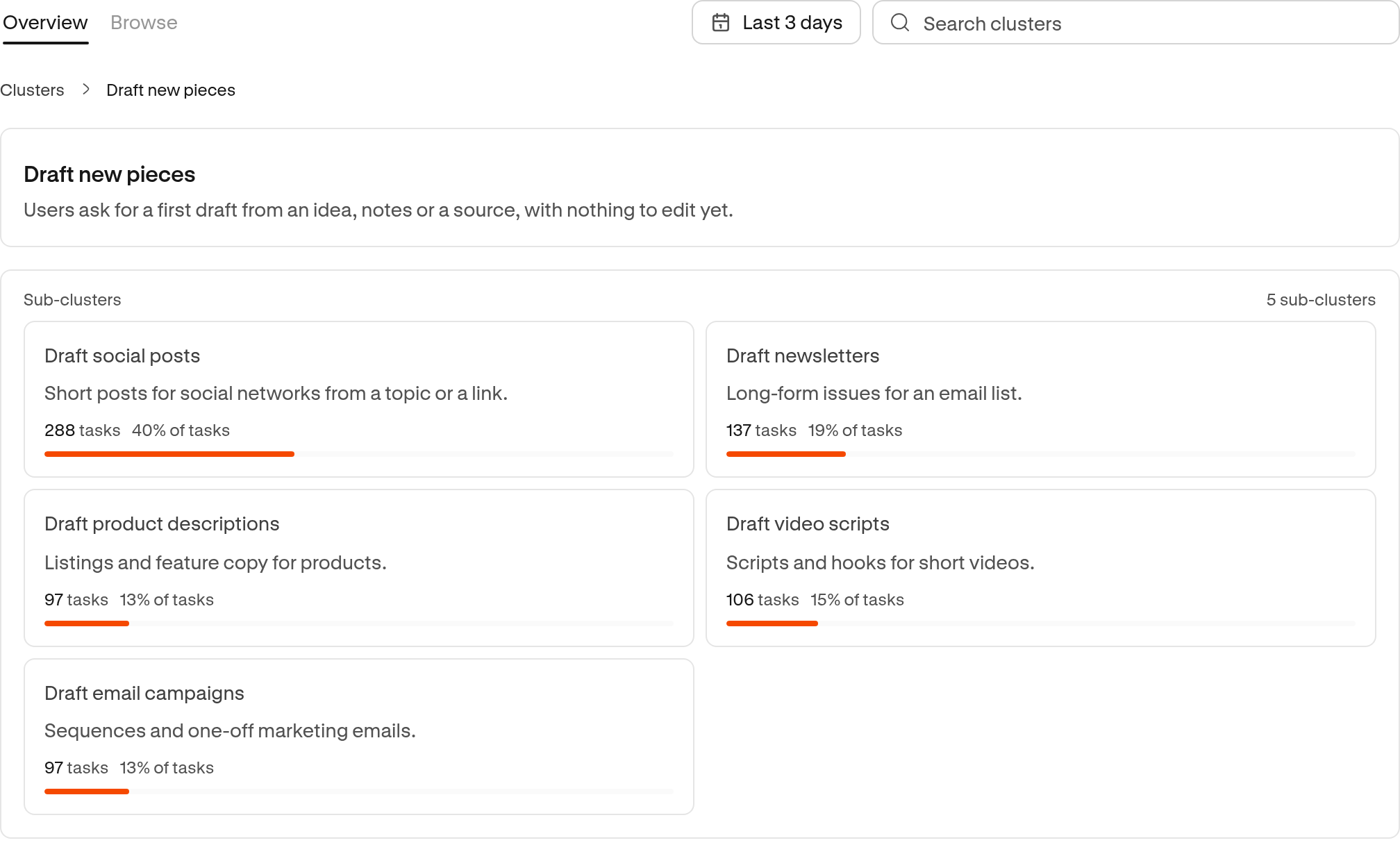
Writing a first draft and revising an existing post both count as writing, but they ask different things of an agent. Grouping them together only tells you so much about what people are using your agent for.
We've added more specific groups in Clusters so you can follow those differences down to the tasks themselves. Each group has its own summary and recent tasks. At the most specific level, links to similar groups let you look at related work too.
See how a task unfolded
If you're trying to understand how a request changed, a short task summary can leave you going back through the conversation. We've added timelines to recent tasks so you can read the steps behind the summary.
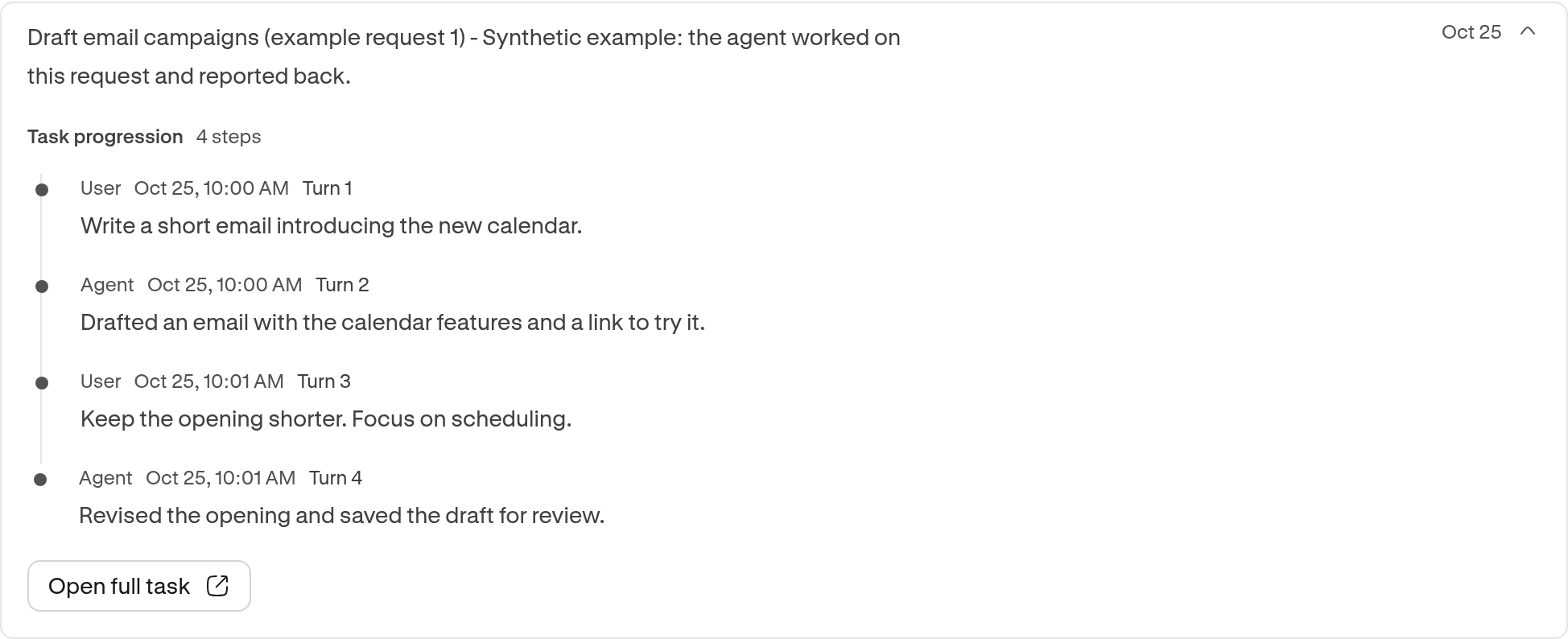
For tasks with a recorded timeline, you can now expand the task and see who acted and when. Steps with a source turn link straight to that point in the conversation, so you can check what the user asked and what the agent actually said.
Find traces by processing status
Sometimes you need to check which traces Moda has finished processing, or find the ones that failed. We've added a Processing status filter to the Traces page for that. You can choose Processed, Pending or Failed and use it alongside search.
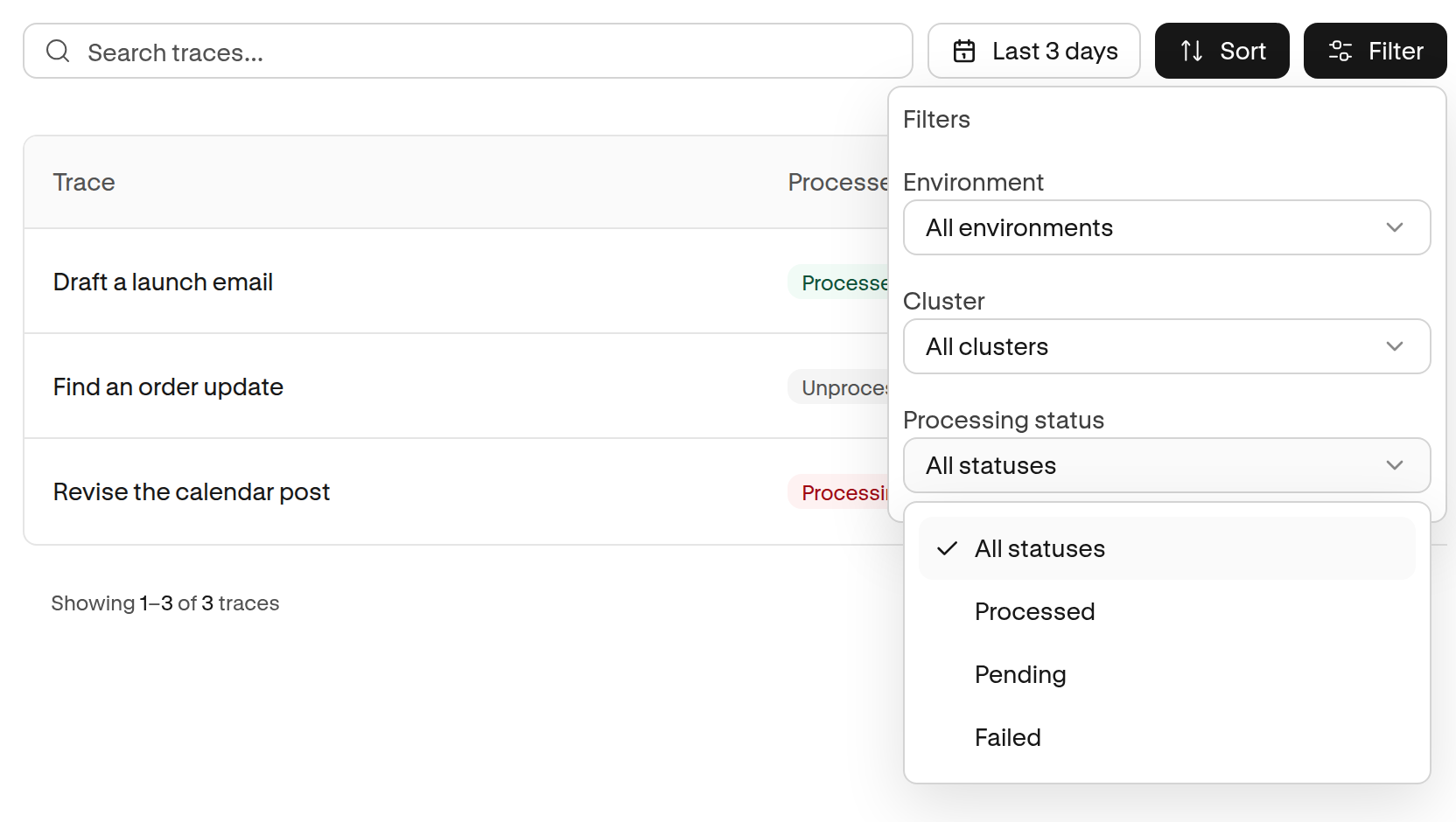
These are states of Moda's processing. A trace marked Processed doesn't mean the agent completed the user's task successfully.
Your selection stays in place when you open a trace and go back. Modesius keeps it too when you save the page as context, so you can ask about the same set of traces you're looking at.
What the agent had available
When an agent gives an unexpected answer, the messages alone don't tell you which tools it could use or what memory it recalled. We've added a Turn snapshot panel so you can inspect that context alongside the conversation.
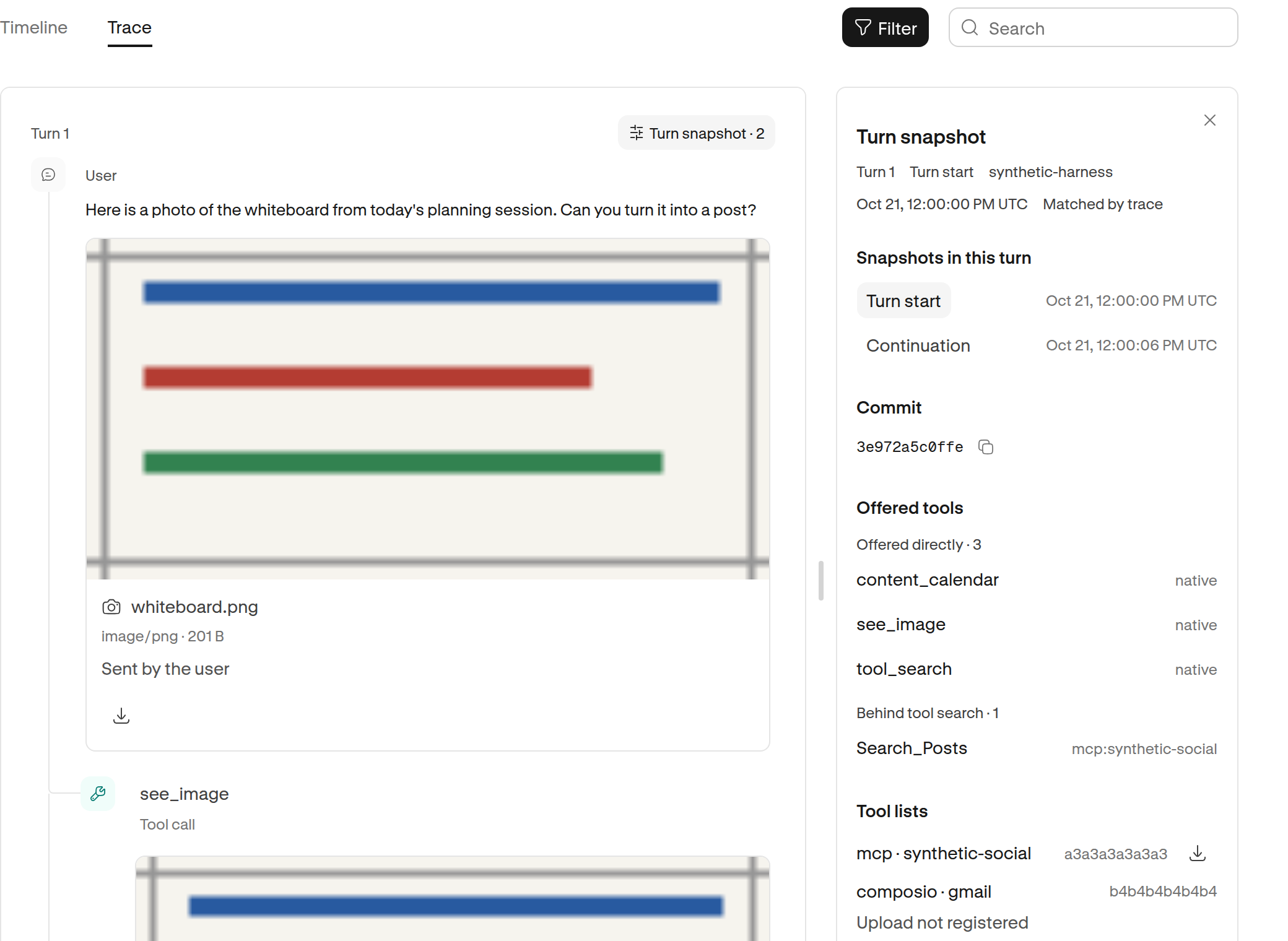
For turns with a captured snapshot, the panel shows the recorded code version, offered tools, memory recall and saved state. You can also tell which tools were offered directly and which were available through tool search. This depends on what your integration captures. We can't show state that wasn't recorded.
We've also brought images, audio and files into the conversation beside the messages they belong to. You can see the attachment while you're reading the exchange that used it.