5 updates
Welcome to the fifth issue of the Moda weekly update. Last week we introduced Home customization and more choices in signal rates. This week we have rebuilt Home around widgets and added a retention heatmap to see which users come back.
In this update we will cover the new dashboard, a few widgets to try, and weekly retention targets. We also added cluster trends, saved user cohorts and before-and-after comparisons in the CLI.
A redesigned Home with more widgets
Home now has a shared layout, a larger widget gallery and new controls for arranging your dashboard.
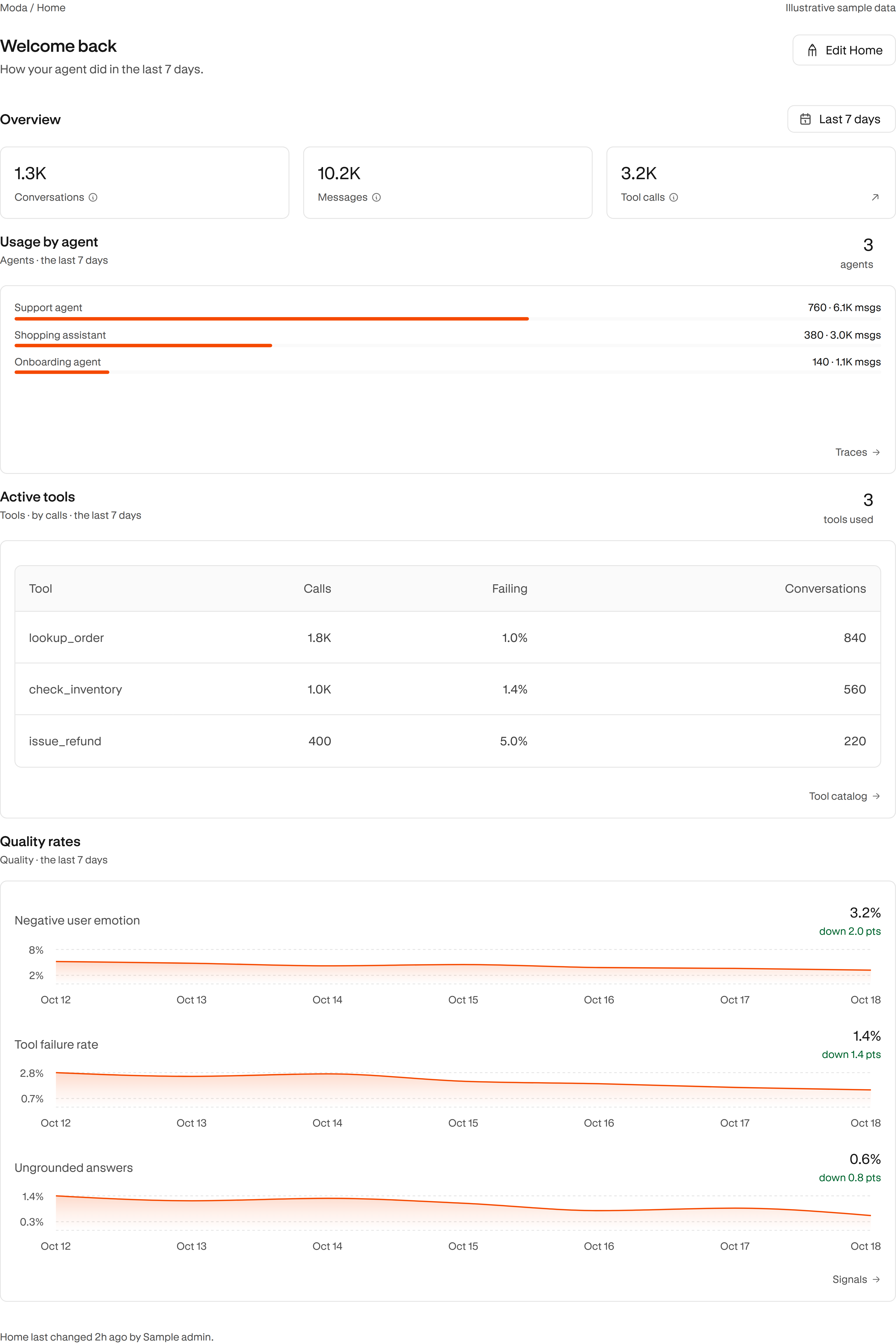
The Overview numbers sit alongside your widgets, so you can choose what your team sees first. Add the signals, problems, users, tools and usage measures you follow. The rest of the dashboard uses the same chart colors, table spacing and controls.
A few widgets to try:
- Usage by agent shows which agents handle the most conversations. Use it to see where your traffic goes.
- Active tools shows call counts and failure rates together. Sort by calls to find busy tools, or by failure rate to find unreliable ones.
- Quality rates puts negative user emotion, tool failures and ungrounded answers together, with a comparison against the previous period.
You can also add a frustration distribution, emerging clusters, or new and growing problems.
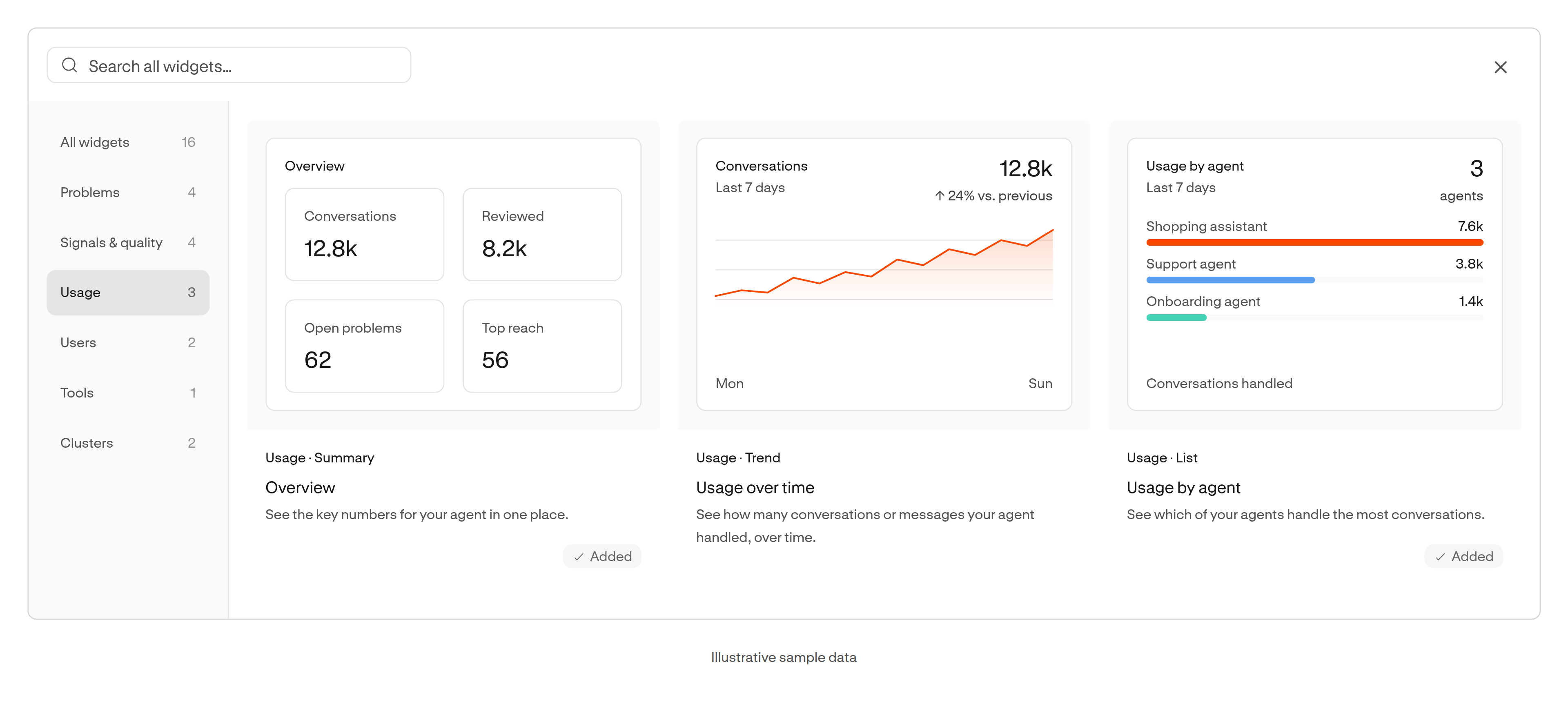
Owners and admins can open Edit Home, then Add widgets. The gallery shows an example of each widget. Select one to see a preview with your workspace's data and choose its settings before adding it.
Drag a widget by its handle to move it. Widgets size themselves to their content, and Beautify arranges the draft into balanced rows. You can change the Overview numbers or remove a widget in the same edit. Most widgets can follow the page's date range or keep their own.
Done saves the layout. Cancel discards the edit. Last week's layout saved in your own browser; this one is shared across your workspace and browsers. If another admin saves while you edit, Home asks you to resolve it before replacing their layout.
Retention by signup week
Users now has a retention heatmap with a separate target for each week after signup.
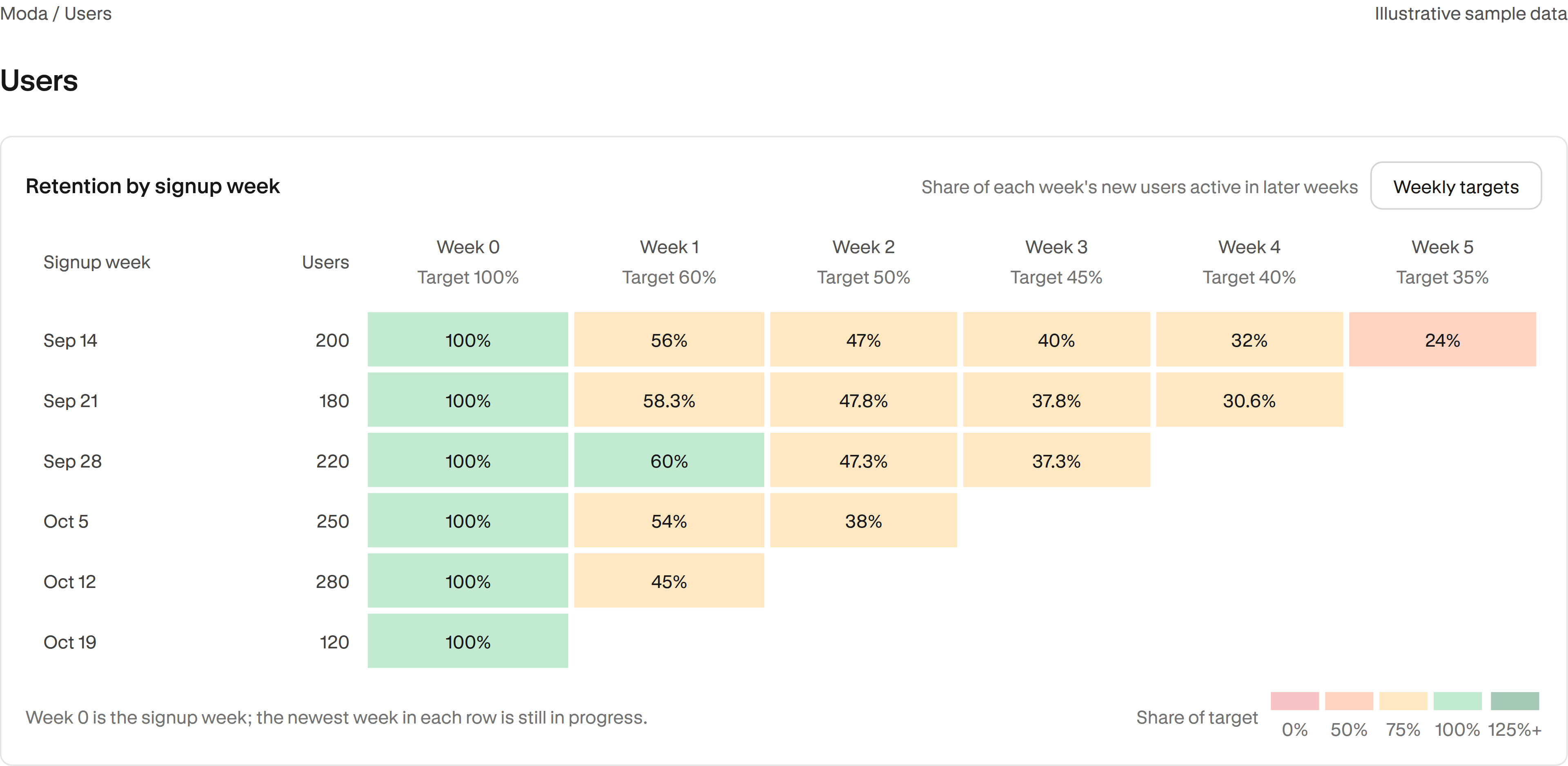
Each row groups users by the UTC week Moda first saw them. Read across to see what share had a conversation in each later week. Week 0 is always 100%. Blank cells are weeks that have not started, and the newest week in each row is still in progress.
Weekly targets lets you set the return rate you want for each week. The percentage in a cell stays the actual retention rate. Its color compares that rate with your target. Green meets the target; amber, orange and red fall below it. Deeper green reaches at least 125% of the target.
For example, 50% retention is green against a 50% target, but amber against a 60% target. You can see where a cohort falls short without expecting every user to return every week.
Targets start at 100% and save for your account and project in the current browser. The heatmap covers all identified users, even when the user list has a filter.
Cluster trends over time
Clusters now shows task counts over time, with a trend line for each cluster.
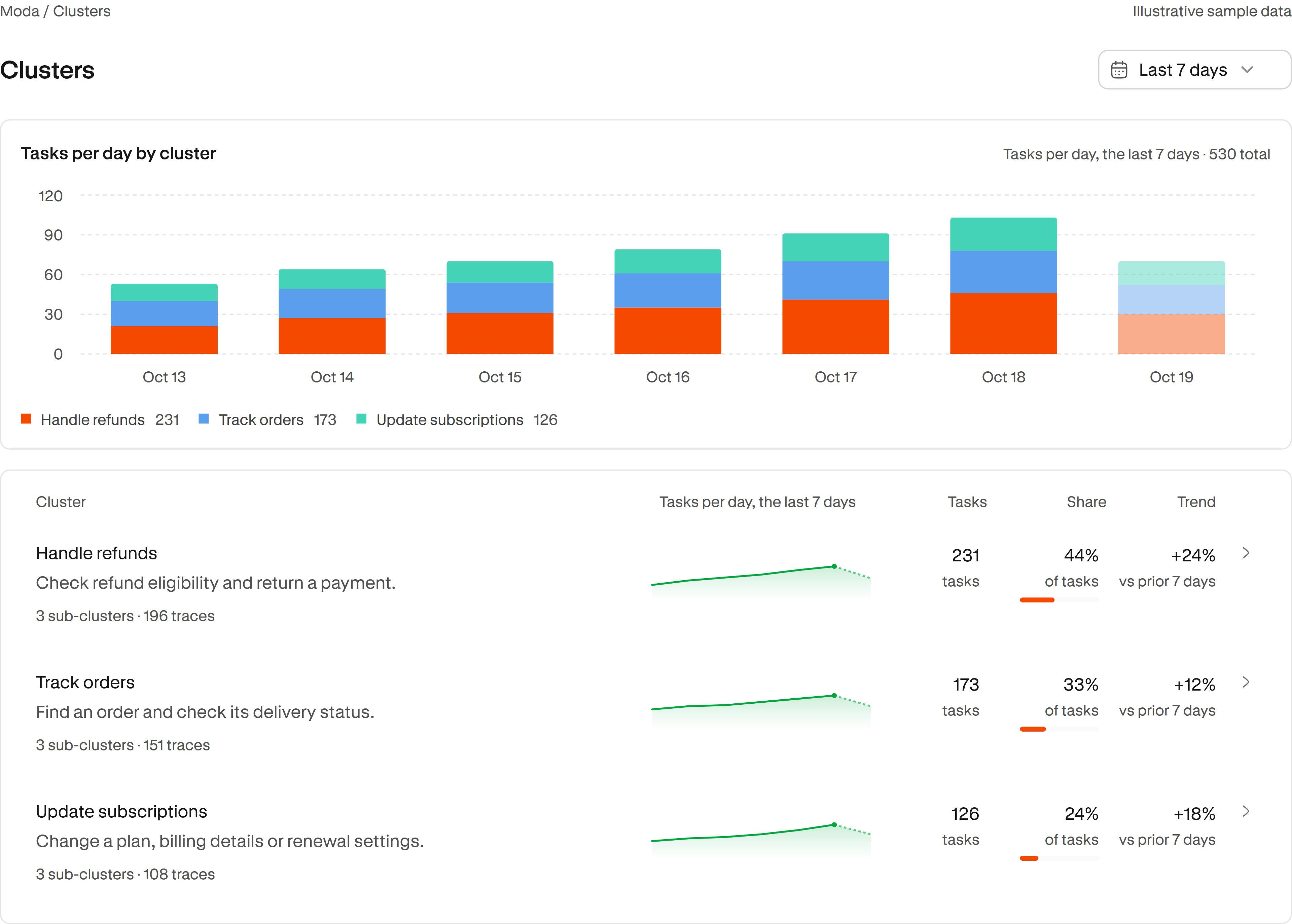
The overview chart shows how activity divides between clusters. When more tasks come in, you can see which clusters account for the change. Open a cluster to see its sub-clusters, traces and related problems. Surfaced problems also shows incidents over time when that history is available.
The same date range controls the page's counts, charts, problems and traces. Changing the range keeps your open cluster and Browse selection in place. You can check a different period without finding the same branch again.
These pages now use the name Clusters. Some filters elsewhere still say Use case. Charts cover the whole workspace, so they stay hidden when you select a user cohort.
Save and compare user cohorts
You can now save groups of users as cohorts and compare them side by side.
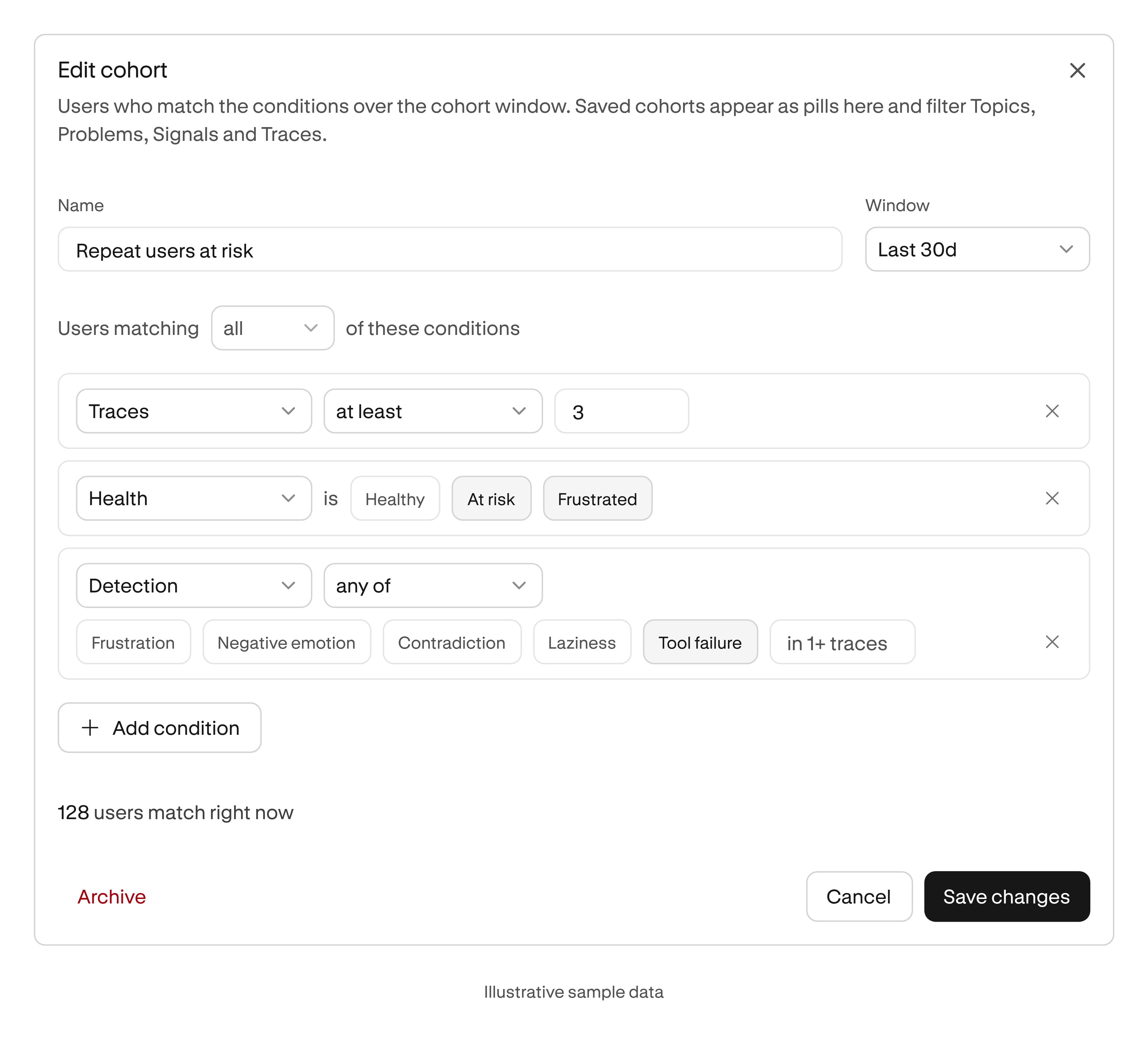
You might want to follow users who had tool failures during the last month. Build that group from conditions such as health, activity, tool failures or detected signals. Choose whether all conditions or any condition must match. The builder shows a matching user count before you save.
Owners and admins can create and edit saved cohorts. Other members can use them to filter. The cohort selector carries your group into Traces, Problems, Signals and Clusters.
Compare cohorts shows each group's health, activity, common task categories and failure types. Failure shares use each cohort's traces as their base. This lets you compare groups of different sizes without relying on raw failure counts.
Before-and-after checks in the CLI
The Moda CLI can now compare a time window with the same length of time immediately before it. You can use a deployment time to check what changed after a release.
moda overview --compare --since=2026-10-17T14:00:00Z
Replace the example time with your deployment time. Add --series --json to get the data points over time. The CLI uses the dashboard's metrics and states the unit behind each rate.
Overview comparisons do not take a cohort filter. You can use --cohort on supported list commands to investigate one group, or moda cohorts compare to compare two groups.