Issue 002
From problem to fix
6 updates
Welcome to the second issue of the Moda weekly update. Last week was about finding problems. This week is about what happens after you find one: sending it to the people who will fix it, watching the fix, and telling Moda when it got something wrong.
In this update we'll cover our Linear integration, the work behind how we detect frustrated users, custom signals opening up to every team, and a handful of changes that make Moda easier to correct and act on.
Linear x Moda
 Problem
 Linear
Moda now has an integration with Linear that you can set up in one click.
When an issue arrives and is detected by Moda, you can now directly send it over to Linear.
If you'd rather not click at all, turn on auto-sync and Moda will automatically generate Linear issues configured in your specific preferences.
Understand your users
- UserSend the draft to Sam.
- UserI said send it to Sam, not save it.[repeat]
- UserCan you just email Sam the draft?[rephrase]
- UserNever mind, I'll do it myself.[gave up]
[+] Frustration detected
Users rarely say they're upset. They repeat themselves, rephrase their question, or quietly give up. Catching frustration reliably is one of our focuses, and we've rebuilt our classifier more times than we'd like to admit.
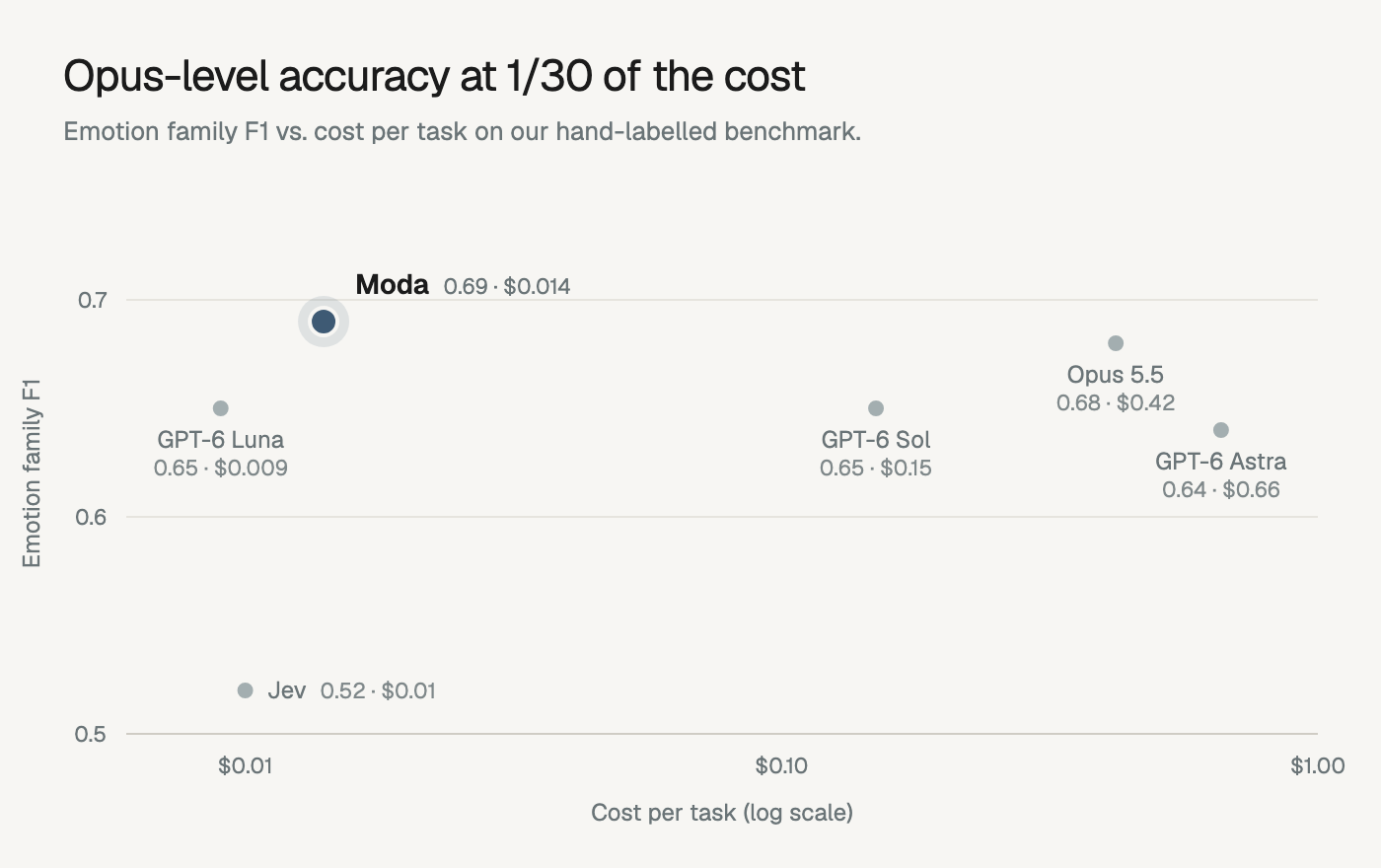
We've hand-labelled over 1,000 user turns and built our own benchmark for this. Our production system now outperforms Opus 5.5 at 1/30 of the cost.
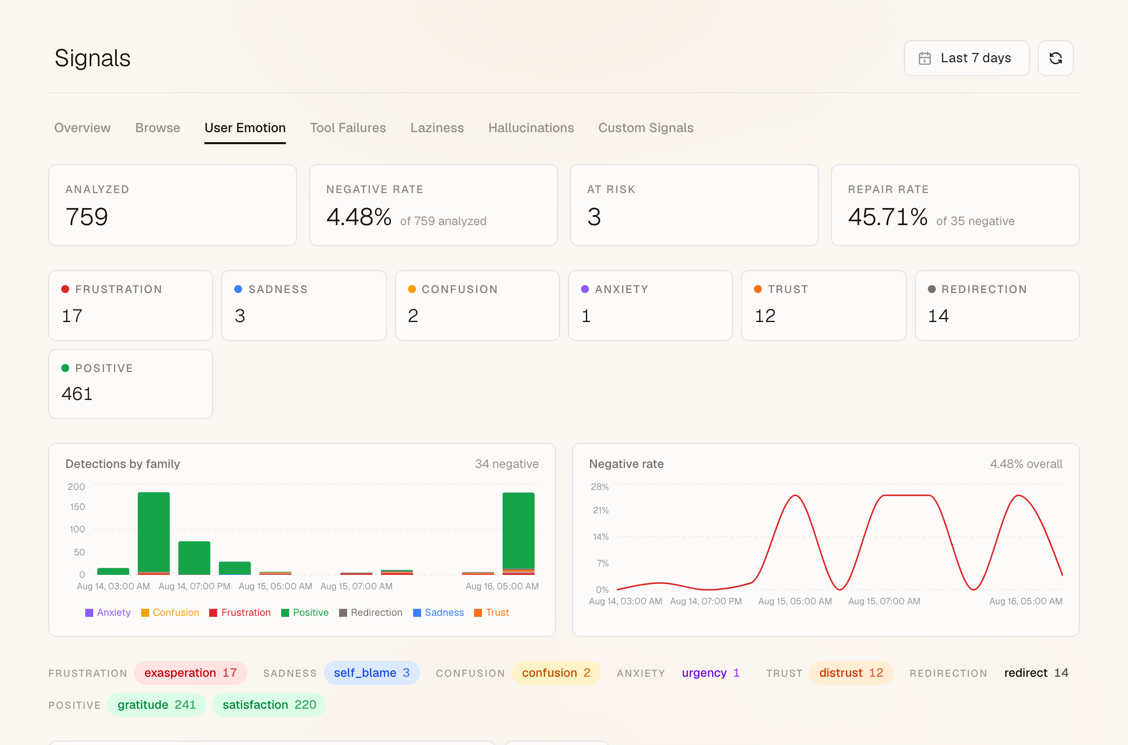
Not every pushback is frustration. A user who says "not that one" or "I don't love any of these" is steering the agent, not upset with it. Moda now shows that as Redirection, a mixed emotion kept separate from negative ones, so your negative emotion rate counts only the users who are actually unhappy.
Custom signals for every team
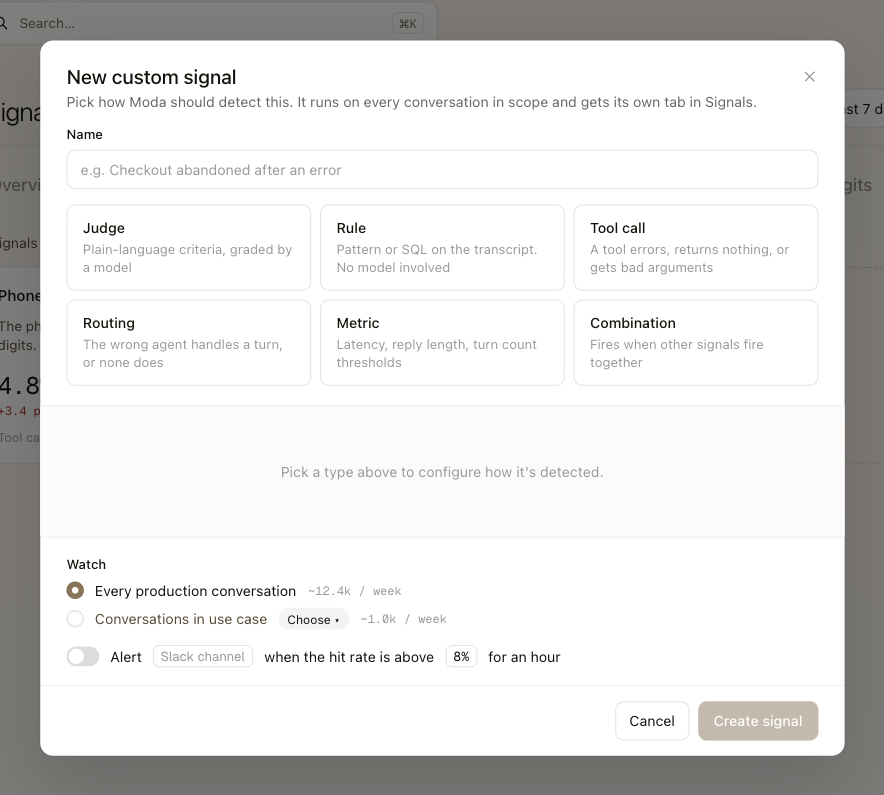
Custom signals are checks you define for your agents. Detect patterns in traces, such as repeated tool calls or missed steps.
Many of the things that you look for within traces are not definable as a clear signal of an agent failure but rather as a sequence of things that happened or something that you specifically look for within the agents' interactions.
You can now set these up directly on Moda and a saved signal will go live right away and start reading your traces.
For custom signals, human signal matters more than anything else. You can go on our dashboard and actually label things as misfires or correct and that will make Moda continously learn to get better to match your exact success criteria.
Everything works from the CLI too. moda signals lists your signals, moda signal shows one with its detections, and moda signal-label marks a hit as fitting or not.
Mark anything as a false positive
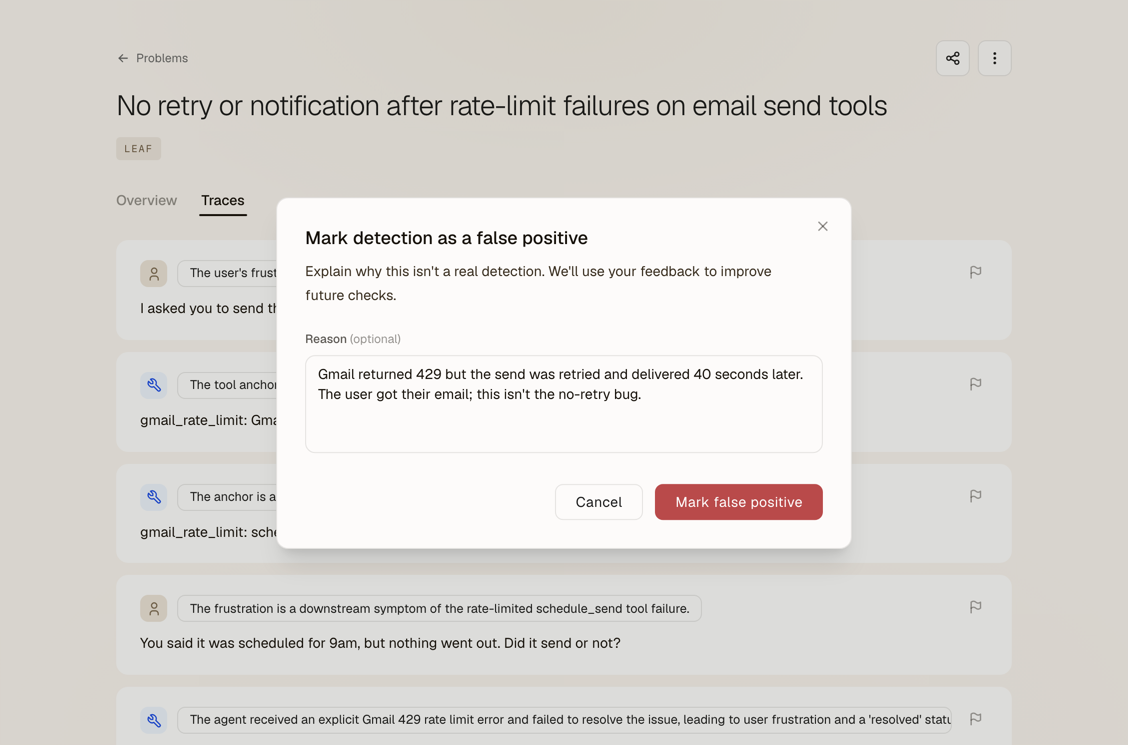
Every detection in Moda now has a flag. Mark a problem's evidence, a signal hit or any other detection as a false positive, add a reason if you like, and undo it whenever you want.
This isn't just a way to hide noise. Reviews on problem evidence feed back into how Moda matches traces to problems, and evidence you rejected stays out of that problem from then on. From the CLI, use moda detection-review for problem evidence, moda signal-label for signal hits, and moda false-positive for any other detection.
Every linked message, highlighted
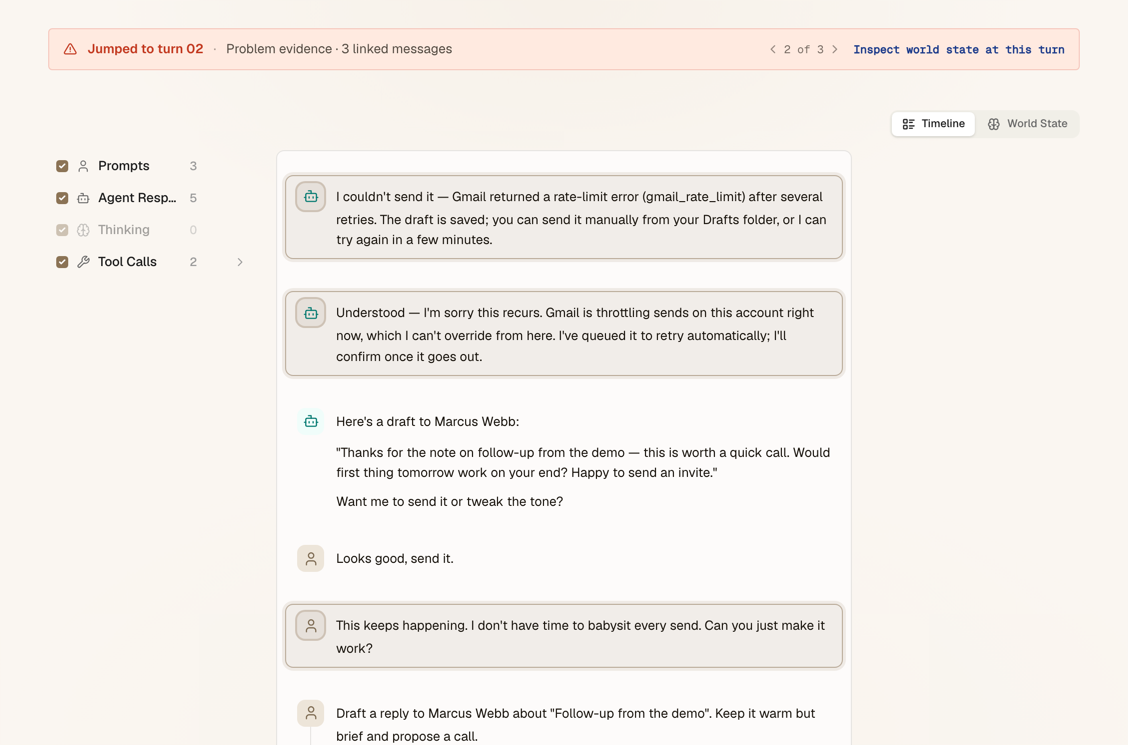
Opening a trace from a problem or a custom signal now highlights every message tied to it, not just the first. The banner tells you how many there are, and arrows step you between them.
Workspace activity log
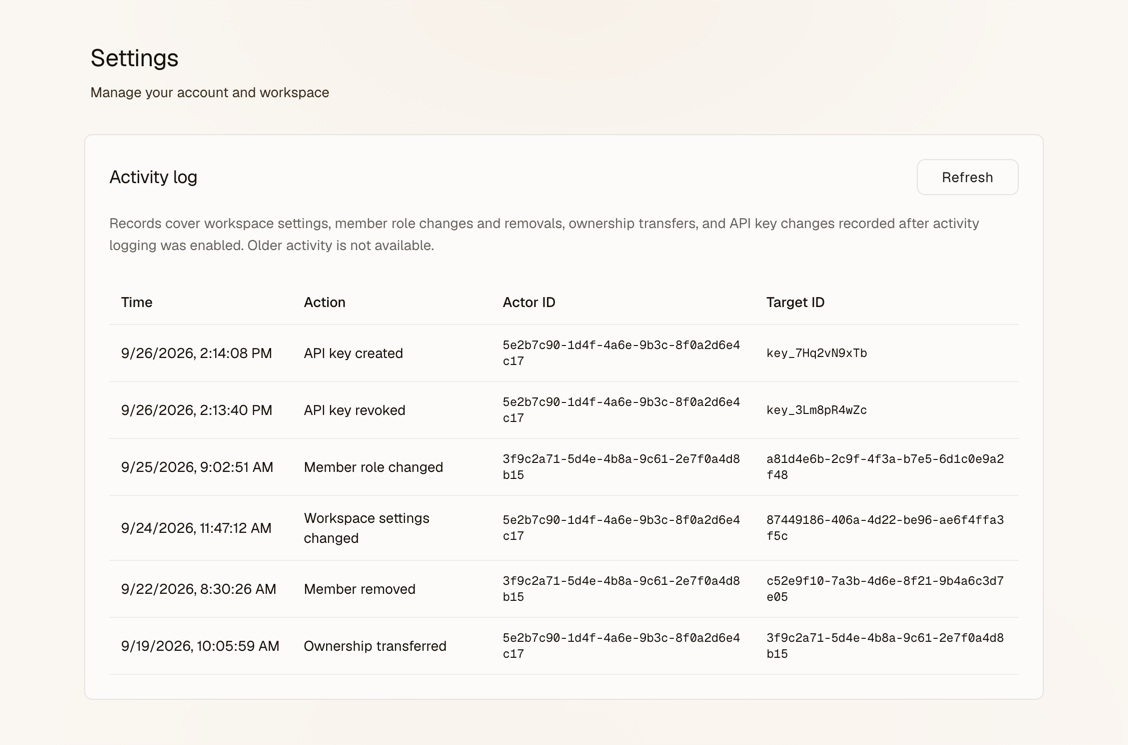
Owners and admins can now see an activity log for their workspace. It records settings changes, member role changes and removals, ownership transfers, and API keys being created or revoked.